i3 Desktop Part 3: The Status Bar
The status bar is where a minimal desktop can easily become noisy.
I do not want a top bar full of icons I stop seeing. I also do not want an empty bar that forces me into a terminal for every small check. The useful middle is a compact bar that shows the state I actually act on.
This setup uses i3bar with i3blocks. The i3 config starts it with:
~/.local/bin/i3blocks-run -c ~/.config/i3blocks/config
The i3blocks config is intentionally simple. Each block calls .local/bin/i3blocks-status with a block name, or in the Pomodoro case calls .local/bin/i3-pomodoro status.
The visible blocks are:
- notifications
- network
- battery
- disk
- memory
- CPU
- load
- media
- radio
- volume
- Pomodoro
- time
That list is a pretty good summary of what I need from a bar.
Blocks should be useful, not decorative
The notification block talks to dunstctl. It shows whether notifications are clear, visible, queued, in history, or paused. Clicking it opens notification controls. Middle click can restore history, and right click clears history.
The network block uses nmcli to find the primary connected device, its connection name, IP address, and whether a VPN is active. Clicking it opens the network menu. If the network is down, it is visible immediately.
The battery block reads from /sys/class/power_supply. It handles charging, full, discharging, and low thresholds with different colours. Clicking opens the power menu.
Disk, memory, CPU, and load are intentionally plain. They show percentages or current load and only change colour when the value is worth noticing. The point is to catch pressure, not to turn the bar into a monitoring dashboard.
Time is just time.
Clicks matter
The bar is not just output.
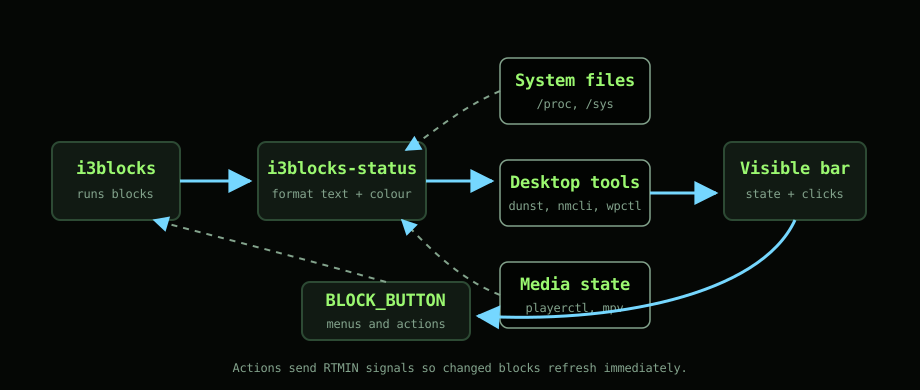
Several blocks respond to BLOCK_BUTTON, which is one of the reasons i3blocks works well here. The volume block opens the audio menu on left or right click, scrolls volume up and down, and toggles mute on middle click. The media block toggles play/pause, skips tracks, opens the media menu, or goes previous depending on click. The radio block opens the radio menu or stops radio. Pomodoro opens its menu or toggles pause.
This makes the bar a small control surface.
I still prefer keyboard shortcuts for common actions, but mouse actions are useful when the pointer is already there or when I am showing someone else the machine. It also makes state visible and actionable in the same place.
Signal-driven where it matters
Polling everything constantly is wasteful and slow to feel responsive.
The i3blocks config uses intervals for normal refresh, but also assigns signals to blocks that need immediate updates. Notifications use signal 10. Network uses 11. Volume uses 12. Battery uses 14. Pomodoro uses 15. Media uses 16. Radio uses 17.
The helper scripts call pkill -RTMIN+n -x i3blocks after actions that should refresh the bar. Changing volume updates the volume block. Starting radio updates the radio block. Pausing media updates the media block. Toggling notifications updates notification state.
That is a small detail, but it changes how the desktop feels. A status bar that lags behind actions is easy to stop trusting.
Conditional blocks
The media and radio blocks only appear when useful.
The media block checks for an active MPRIS player through playerctl. If nothing is playing, it returns without output. If something is playing, it shows a shortened artist/title line.
The radio block checks the runtime state under XDG_RUNTIME_DIR. It validates the stored mpv PID, cleans up stale state, and shows the station name only while radio is actually running. If the radio is paused, the colour and text change.
This keeps the bar calm. I do not need a permanent “nothing playing” label.
Shared colour language
The status script sources ~/.config/i3/theme.env when it can. That gives it the Catppuccin palette used elsewhere. Green means good. Yellow means warning. Red means bad. Mauve is the accent for active or interesting state. Muted grey is quiet state.
That consistency makes the bar easier to scan. I do not need to parse every word every time.
A shell script is enough
The main bar script is just shell, awk, standard Linux files, and small command-line tools.
That is part of why I like it. CPU comes from /proc/stat. Memory comes from /proc/meminfo. Battery comes from sysfs. Network comes from NetworkManager through nmcli. Audio comes from PipeWire through wpctl. Notifications come from dunst. Media comes from playerctl.
There is no separate daemon with its own config language and plugin ecosystem. i3blocks runs commands. The commands print text and colours. Clicks pass in BLOCK_BUTTON.
That is enough for a personal desktop.
The bar is not trying to be a full monitoring system. It is a small, clickable line of context for the things I care about while working.