i3 Desktop Part 2: Launchers, Control Centre, and Key Help
A keyboard-driven desktop still needs discoverability.
I like shortcuts, but I do not want to remember every shortcut all the time. That is especially true for actions I use occasionally, like changing monitor scaling, opening Bluetooth pairing, clearing notification history, or editing radio stations.
The answer in this setup is not a full settings app. It is a thin rofi layer.
There are three normal launcher modes:
Mod+dopens the app launcherMod+Shift+dopens the run launcherMod+Tabopens the window switcher
Those are handled by .local/bin/i3-app-launcher. When rofi is available, it uses rofi’s drun, run, and window modes. If rofi is not available for app and run launchers, it falls back to dmenu-style tools.
That covers normal launching. The more interesting part is the control centre.
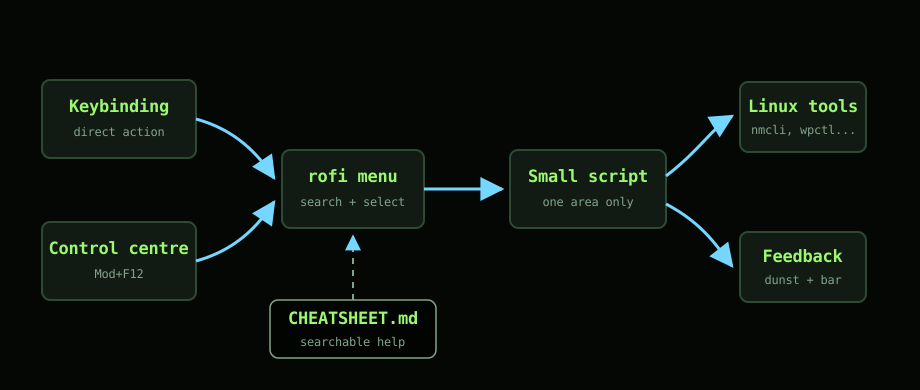
One menu to re-enter the system
Mod+u opens .local/bin/i3-control-center.
It is deliberately boring. It prints a list of actions and pipes them into rofi. Selecting an item calls the relevant script:
- apps
- run command
- windows
- scratchpad terminal
- wallpaper
- keybinding cheat sheet
- notes
- media
- radio
- monitor layout
- monitor scaling
- keyboard layout
- audio
- network
- Bluetooth
- clipboard
- notifications
- screenshot
- Pomodoro
- power
- lock
- reload i3
This is useful because it gives the whole desktop a front door.
Most actions still have direct keybindings. The control centre is not replacing those. It is there for when I know what I want to do but do not remember the binding, or when I am using the setup after a break and need to find my way back in.
It also makes the setup easier to extend. A new feature needs a script, a direct binding if it is common enough, and a control centre entry. That pattern keeps repeating.
Searchable keybinding help
The other piece is .local/bin/i3-cheatsheet-menu.
The dotfiles include a CHEATSHEET.md file with tables of bindings. The script parses those Markdown tables, turns them into rofi entries, and lets me search them. If I select an entry, it copies the binding to the clipboard when xclip is available, or shows it through a notification.
This is better than keeping shortcuts only in the i3 config.
The i3 config is good for machines. A cheat sheet is good for humans. The script bridges the two enough that the cheat sheet becomes interactive without needing a separate app.
It also means the documentation lives next to the dotfiles. When I add a binding, I can add it to the cheat sheet in the same repo. The control centre then exposes that help immediately.
Rofi, with dmenu as the escape hatch
Most scripts in the setup use the same helper pattern:
- Define a list of options.
- Pass it to rofi with the shared theme.
- Fall back to dmenu when possible.
- Send feedback through dunst.
That consistency matters. The network menu, audio menu, Bluetooth menu, radio menu, notification menu, clipboard menu, notes menu, and control centre all feel like parts of the same desktop because they behave the same way.
The shared rofi theme uses Catppuccin Frappe colours, JetBrains Mono, fuzzy matching, icons for application launching, and a compact centred window. It is not trying to be decorative. It just gives menus enough polish that they do not feel like debug prompts.
The value of boring menus
I do not want to build a desktop where every action needs a bespoke GUI.
The control centre works because it is not clever. It is just a router to small scripts. Each script owns one area. The launcher launches. The notification script talks to dunst. The network script talks to NetworkManager. The monitor script talks to xrandr.
The menu layer gives me fast access, but the behaviour stays in plain shell scripts.
That is the balance I want from this desktop. It should feel comfortable in daily use, but it should not hide so much that I cannot debug it when something goes wrong.